Connect with Microsoft Excel
When connecting to your model with Excel, you can use either the MDX endpoint with your AtScale username and password, or the MDX endpoint with an XMLA token.
Connect with your username and password
To connect to your model using your username and password:
-
In Design Center, in the left-side navigation, click Deployed Catalogs. The Deployed Catalogs panel opens.
-
Click on your deployed catalog.
-
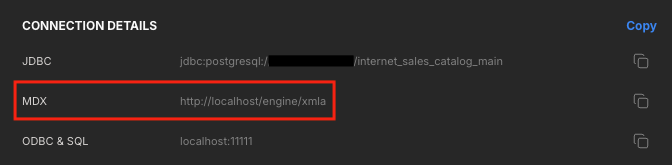
Under Connection Settings, in the Connection Details section, copy the MDX connection string.
-
In Excel, go to Data > Get Data > From Database > From Analysis Services.
-
In the Connect to Database Server dialog, complete the following fields:
- Server name: Enter the MDX connection string.
- Login credentials: Select Use the following User Name and Password, then enter your AtScale username and password.
-
Click Next.
-
In the Select Database and Table dialog, set your catalog as the database, then select the model you want to connect to.