Access Your Model's Connection Details
To query your deployed model, you need to obtain the connection string for the BI tool you want to use.
To obtain the connection string:
-
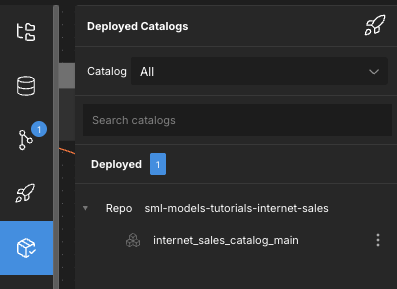
In the left-side navigation, click Deployed Catalogs. The Deployed Catalogs panel opens.
-
Select the catalog you want to connect to.
-
Click the Connect tab at the top of the page.
Here, you can either copy the required connection string for the model, or download its .tds file (if you're connecting to Tableau).
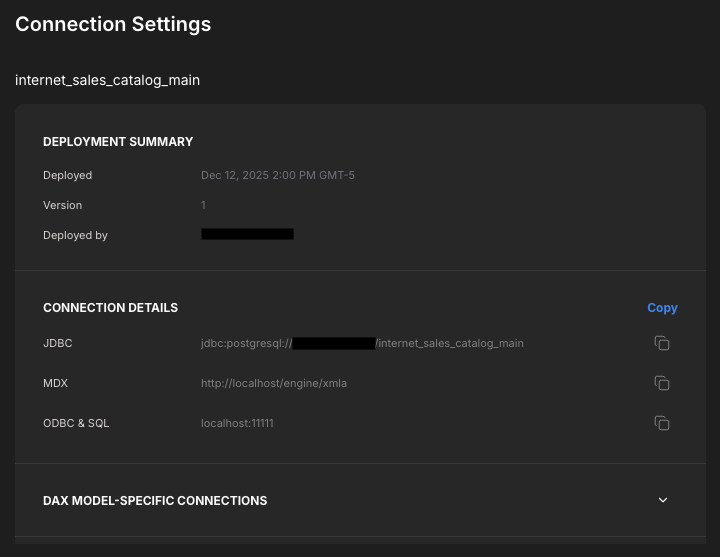
By default, AtScale Developer Edition is installed as localhost. If you want to connect to AtScale from locations other than your host machine, replace localhost in the connection string with a real IP address. On Windows, you can find your IP address by running the ipconfig command in the terminal. On macOS and Linux, use the ifconfig command.
Now you're ready to connect to your model from your BI tool: