Add Additive or Non-Additive Metrics
You can add additive or non-additive metrics to a model by selecting a column in the fact dataset, as well as a supported aggregate calculation to apply to the data in that column.
Before you start
If you use Databricks SQL as a data warehouse, you can use the databricks.estimateddistinctcount.deviation global setting to specify the maximum relative standard deviation allowed for the approx_count_distinct aggregate function. The default value is 0.02.
Procedure
To add an additive or non-additive metric:
-
In the Workspace panel, click the new object button and select Metric.yml. The Metric properties panel opens.
-
Complete the following fields:
-
Display name: The name of the metric that appears in BI tools.
-
Unique name: The unique name of the metric. This value must be unique across all repositories and subrepositories.
-
Description: Optional. A description of the metric. This information appears in BI tools (when supported) and is made available to AI tools.
NoteIf the metric doesn't have a manually entered description, but the Target column the metric is based on has a description in the data warehouse, the description of the Target column automatically appears in the Description field. This information is not added to the metric's SML, but is included when you deploy the model. From there, it becomes visible in BI tools (when supported), and is made available to AI tools.
You can edit the prepopulated description as needed. Any changes you make will override the description from the data warehouse.
If the description in the data warehouse changes, changes will be reflected in the metric when you refresh the dataset in Design Center.
-
Dataset: The dataset that contains the source column you want to base the metric on. This should be the model's fact dataset.
-
Target column: The dataset column the metric is based on.
-
-
In the Aggregation type field, select the aggregate calculation to apply to the data.
Type of Metric Supported Aggregation Types Additive Average, Distinct Count Estimate, Max, Min, Non-distinct Count: count non-null, Population Standard Deviation: stddev_pop, Population Variance: var_pop, Sample Standard Deviation: stddev_samp, Sample Variance: var_samp, Sum Non-Additive Distinct Count, Distinct Sum, Percentile, Count If -
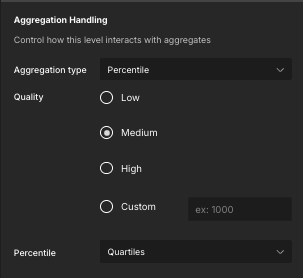
If you selected an Aggregation type of Percentile, complete the following fields:
- Quality: Select an estimation quality for your quantiles. If you select Custom, you must also specify an integer value for the quality.
- Percentile: Select the quantiles you want your data to be divided into. If you select Custom, specify the values you want to use. You can add more values by clicking the + icon below the Add Value field.
For more information on qualities and percentiles, see Non-Additive Metrics.
-
In the Data Handling and Formatting section, enter the following details:
- Override Default Handling: For information about this field, see About Queries on Dimensions that are Unrelated to One or More Queried Measures.
- Formatting: Select the format for the values. If you select Custom, you must enter a custom data format. For more information, see Formats for Data Values.
-
In the Visibility in Published Data Sources section, enable/disable the Include in the list of available metrics option. When enabled, the metric appears in deployed versions of the model.
-
Click Apply.
The new metric appears in the metrics/ folder of the Workspace panel.
If you want to specify a folder for the metric for organizational purposes, you must do so from the Model properties panel.